

Ever opened Google Analytics and seen visits from strange websites you have never heard of? That is usually spam, and it quietly ruins your reports. The good news: Google has added a new GA4 hostname filter that lets you say “only count data from my own websites” and block everything else.
It sounds small, but for any business that makes decisions from analytics, it is a big quality-of-life upgrade. Let’s look at what changed, how to use it, and the one mistake you must avoid.
What Is the New GA4 Hostname Filter?
A hostname is simply the domain where your tracking code fired. For example, growithdigital.in is a hostname.
Until now, GA4 only let you exclude hostnames. So you had to keep adding spam domains to a block list as they appeared. It was like playing whack-a-mole every month.
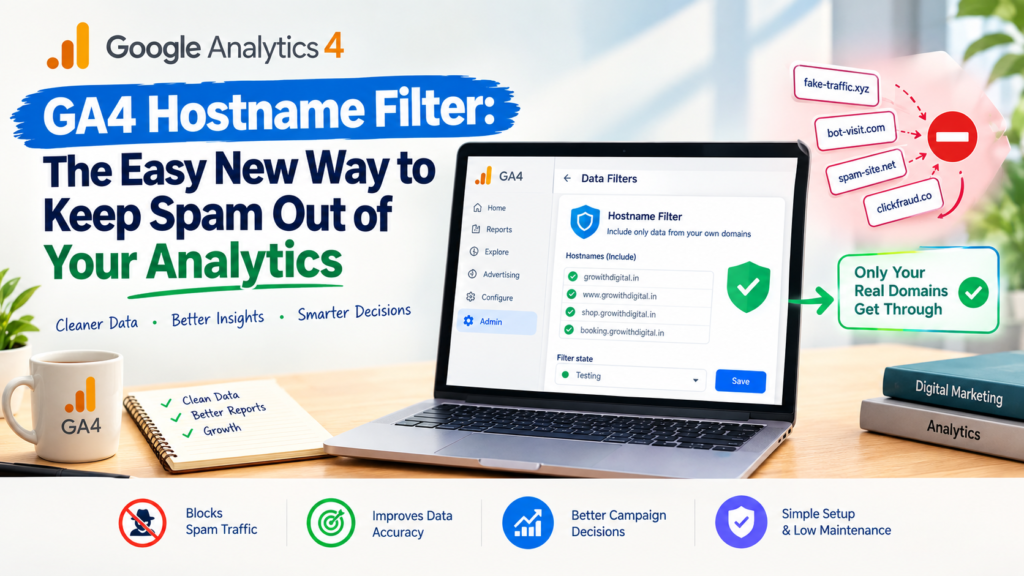
As reported by Search Engine Journal, GA4 now supports include filters for hostnames. Instead of listing the bad domains, you list the good ones. Anything not on your approved list gets filtered out.
A GA4 hostname filter flips the whole approach:
- Old way: block known spam, and hope nothing new shows up
- New way: allow only your real domains, and block everything else by default
Why Spam Traffic Is a Real Problem
Spam hits are not just annoying. They mess with the numbers you use to plan campaigns.
Here is what fake traffic can do:
- Inflate your user and session counts
- Drag down engagement rate and average engagement time
- Make ad campaigns look worse, or better, than they really are
- Pollute conversion data if spam fires fake events
For a small business running Meta or Google Ads on a tight budget, bad data leads to bad decisions. You might pause a campaign that is working or scale one that is not. A GA4 hostname filter helps protect you from that.
How the GA4 Hostname Filter Works
Here are the key points you should know before switching on a GA4 hostname filter.
It works as an allowlist
You add the hostnames you trust, such as your main domain, your www version, and any booking or shop subdomain. Events from those hostnames pass through normally.
Events with no hostname are blocked
Hits that arrive with a blank hostname are usually spam, so the GA4 hostname filter drops them as well.
Measurement Protocol is not covered
Events sent through the Measurement Protocol (server-side hits) skip this filter completely. If you use server-side tracking, you will need other checks for that data.
It only affects new data
The filter works from the moment it is active. It does not clean up your old reports. Past spam stays in historical data.
It takes time to kick in
Google says it can take 24 to 36 hours for the filter to start applying after you activate it.
The One GA4 Hostname Filter Mistake You Must Avoid
This is the most important part of this post.
Once a data filter is active, the events it removes are gone for good. They will never appear in GA4 or in BigQuery exports. There is no undo button.
So if you forget to add a legitimate hostname, for example a payment page on another domain or a separate landing page site, you will permanently lose real data from it.
That is why Google includes a Testing state. In testing mode, the filter tags matching events instead of deleting them. You can check your reports, confirm only junk is being caught, and then switch to active.
Always test first. Always.
Step-by-Step: Setting Up a GA4 Hostname Filter
The feature is still rolling out, so you may not see it in every property yet. When it appears, the setup looks like this:
- Go to Admin in your GA4 property
- Open Data collection and modification, then Data filters
- Create a new filter and choose the hostname filter type
- Select the include option and add every hostname you own
- Set the filter state to Testing
- Wait a few days and review your reports using the test dimension
- When you are confident, change the state to Active
Google’s own help page on GA4 data filters explains the testing and active states in more detail, and is worth a read before you start.
Build Your Hostname List Carefully
Before you create a GA4 hostname filter, list every place your tracking code runs. Many businesses forget a few. Check for:
- Your main domain and the www version
- Subdomains like shop., book., or blog.
- Landing pages built on other tools
- Payment or checkout pages hosted elsewhere
- Staging sites (usually you want these excluded, not included)
A quick way to find them is to open a report in GA4 and add “Hostname” as a dimension. Look at the last few months and note every real domain that appears.
Is the GA4 Hostname Filter Right for You?
For most small and mid-sized businesses, yes. If you have one or two websites and a simple setup, an include filter is cleaner and needs almost no ongoing maintenance.
You may want to be more careful if you:
- Run many domains or country sites
- Rely heavily on server-side tracking
- Use third-party tools that fire events from their own domains
Google’s documentation does not yet fully explain how subdomains are matched, so test those cases closely.
What This Means for Businesses in Kolhapur, Sangli and Ichalkaranji
Most SMEs we work with in western Maharashtra run one main website, often with a separate booking page, a WooCommerce store, or an Instamojo or Razorpay payment link. That is exactly the kind of setup where a GA4 hostname filter helps, and also where a missed domain can hurt. A textile trader in Ichalkaranji who runs ads to a Shopify catalogue and a WordPress site, for example, must add both hostnames before activating anything.
During festive season campaigns, when ad budgets go up for Navratri and Diwali, clean data matters even more. Set the filter to Testing at least two weeks before your big campaign so it is proven and active when the spending starts.
Clean Data Is a Growth Tool
Good marketing starts with honest numbers. When your analytics is full of spam, every report becomes a guessing game. A properly tested GA4 hostname filter takes a lot of that noise away with very little effort.
If you are also reviewing the technical side of your site, our technical SEO checklist for 2026 is a good next step. And if you would rather have experts set up tracking, filters, and reporting for you, take a look at our digital marketing services.
Clean data in, better decisions out.